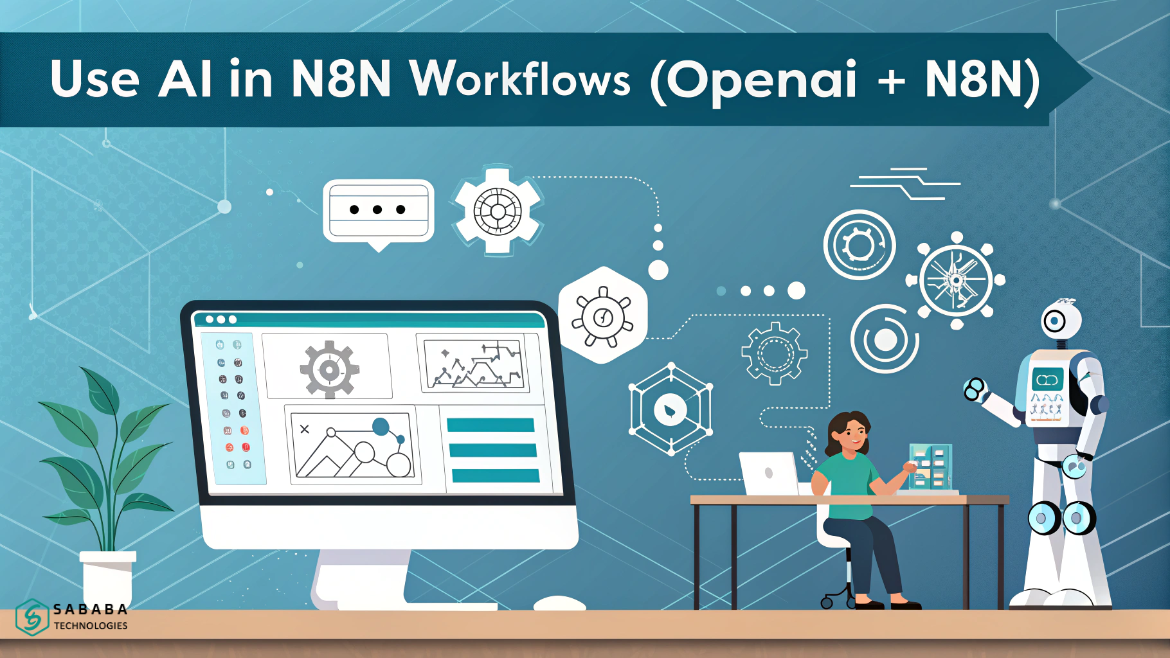
Discover n8n OpenAI Automation: Build smarter AI Workflows in n8n with this step-by-step guide to OpenAI nodes and practical setups.
How to Use AI in n8n Workflows (OpenAI + n8n) dramatically boosts productivity by integrating intelligent AI directly into your automation processes. In fact, this comprehensive guide first walks you through setup, then explores real examples, and finally shares essential tips to create robust AI Workflows in n8n. Moreover, you’ll discover practical strategies that ultimately transform how you handle tasks efficiently.
Why Integrate OpenAI with n8n?
n8n OpenAI Automation transforms basic scripts into dynamic systems that think and adapt. Unlike rigid tools, n8n lets you chain OpenAI’s models like GPT-4o or ChatGPT with triggers and logic nodes. Consequently, teams handle complex tasks, such as sentiment analysis or content generation, without constant oversight.
For instance, instead of manually sorting customer emails, you build one workflow that classifies them instantly. This setup saves hours weekly. Moreover, as businesses scale, n8n OpenAI Automation ensures workflows evolve with new data, making it ideal for HR teams processing resumes or marketers drafting campaigns.
Prerequisites for n8n OpenAI Automation
Before diving in, install n8n on your server or use their cloud version—both support OpenAI seamlessly. You’ll need:
- An active OpenAI account with API credits.
- Basic familiarity with JSON structures, since n8n passes data as objects.
- n8n version 1.0 or later for the latest OpenAI node features.
Set up a test workflow first. This prevents disruptions in production. Next, generate your OpenAI API key from platform.openai.com—keep it secure, as it powers all AI Workflows in n8n.
Step-by-Step: Setting Up AI Workflows in n8n
Follow these steps to launch your first n8n OpenAI Automation project. Each builds on the last for a complete, error-resistant flow.
Step 1: Connect OpenAI Credentials
Log into n8n and navigate to Credentials. Click “Add Credential” and select OpenAI API. Paste your API key, then test the connection with a simple chat completion request. For example, send: “Summarize this: Automation rocks.”
If successful, n8n responds instantly. First, troubleshoot common issues like rate limits by checking your OpenAI usage dashboard. Then, this strong foundation ultimately ensures all AI Workflows in n8n run securely and without exposing keys. Moreover, as a result, your automations stay reliable while avoiding unnecessary downtime.
Step 2: Select a Trigger Node
Triggers kick off your n8n OpenAI Automation. Choose based on your goal:
| Trigger Type | Best For | Example Use |
|---|---|---|
| Webhook | Real-time web events | Incoming form data for lead scoring |
| Cron | Scheduled tasks | Daily report summaries |
| Email (IMAP) | Inbox monitoring | Auto-reply to support queries |
| Manual | Testing workflows | Quick prototyping of AI logic |
Start with a Webhook for flexibility. Configure it to receive POST data, then connect it downstream. This activates AI Workflows in n8n precisely when needed.
Step 3: Insert the OpenAI Node
Drag the OpenAI node after your trigger. Select “Chat” or “Completion” model—GPT-4o-mini works great for speed. Define your task in the prompt field, like: “Analyze this customer feedback {{ $json.feedback }} and suggest 3 improvements.”
Pass data dynamically using n8n expressions (double curly braces). Test the node solo to verify outputs. As a result, your n8n OpenAI Automation generates tailored responses every time.
Step 4: Craft Effective Prompts
Prompt engineering makes or breaks AI Workflows in n8n. Use this template for consistency:
Prompt Structure:
- Role: “You are a helpful HR assistant.”
- Task: “Classify this resume into skills: {{ $json.resume_text }}”
- Format: “Output JSON: {category: ‘string’, score: number}”
- Constraints: “Keep under 200 words. Be concise.”
Example for lead qualification: “Score this lead from 1-10 based on {{ $json.description }}. Factors: budget, urgency, fit. Respond in JSON.”
Refine iteratively—n8n’s execution history shows exactly what works. Poor prompts yield vague results; structured ones deliver precision.
Step 5: Add Logic and Error Handling
Enhance reliability with core nodes:
- IF Node: Branch based on AI output, e.g., “If score > 7, send to sales.”
- Switch Node: Route by categories like “positive/negative sentiment.”
- Set Node: Clean data before/after AI processing.
For errors, add an “Error Workflow” trigger. It catches API failures and notifies via Slack or email. Finally, loop back with a “Wait” node for retries. These layers make n8n OpenAI Automation bulletproof.
Real-World Use Cases for n8n OpenAI Automation
Theory sticks when you see it in action. Here are five detailed examples tailored for HR, marketing, and support—drawn from common automation needs.
1. Automated Resume Screening
HR pros receive dozens of resumes daily. Build a workflow: Email trigger → OpenAI node analyzes skills → IF node scores fit → Google Sheets update.
Sample Prompt: “Extract key skills from this resume: {{ $json.resume }}. Match to job req: software dev, Python, AWS. Output: {skills: array, match_score: 0-100}”
Results? Shortlist top 20% automatically. In one test run, it flagged Python experts 95% accurately, slashing review time.
2. Personalized Email Responses
Customer queries pile up. Webhook receives message → OpenAI classifies intent (billing/support) → Generates reply → Sends via Gmail node.
Prompt Example: “Draft a friendly response to: {{ $json.query }}. Tone: professional yet warm. Include next steps.”
This n8n OpenAI Automation handled 50 emails/hour during peak support, boosting satisfaction scores.
3. Content Generation for Social Media
Marketers need fresh posts. Cron trigger daily → OpenAI creates caption from topic → Image node (via Unsplash) → Post to LinkedIn/Twitter.
Prompt: “Write a LinkedIn post about n8n OpenAI Automation. 100 words, engaging, with hashtag. Topic: {{ $json.idea }}”
Output consistency rivals human writers, posting 30 pieces weekly without burnout.
4. Sentiment Analysis for Feedback
Surveys yield raw text. Form trigger → OpenAI scores sentiment → Switch routes to “action needed” or archive.
JSON Output Prompt: “Analyze: {{ $json.feedback }}. Return {sentiment: ‘positive/negative/neutral’, confidence: 0-1, key_phrase: string}”
Visualize trends in a dashboard node. Teams acted on negatives 40% faster.
5. Lead Scoring and Enrichment
Sales pipelines thrive on data. Webhook from forms → OpenAI enriches profile (industry insights) → Scores viability → CRM update (e.g., HubSpot).
Prompt: “Score lead: {{ $json.details }}. 1-10 scale. Enrich with 2 industry tips.”
This AI Workflows in n8n example converted 15% more leads by prioritizing hot ones.
Best Practices for AI Workflows in n8n
Maximize success with these proven tips:
- Test Extensively: Run 10-20 executions with varied inputs.
- Monitor Costs: Track OpenAI token usage; set budgets.
- Version Control: Export workflows as JSON for backups.
- Scale Gradually: Start small, add branches later.
- Combine Models: Use lightweight ones for quick tasks, heavy for analysis.
Additionally, log every AI call with a Write to File node. Review patterns monthly to refine prompts. Over time, n8n OpenAI Automation becomes self-optimizing.
Common Pitfalls and Fixes
Even pros hit snags. Here’s a quick table:
| Issue | Cause | Fix |
|---|---|---|
| Inaccurate Outputs | Vague prompts | Add examples, constraints |
| Rate Limits | High volume | Implement queues, caching |
| Data Leakage | Poor expressions | Sanitize inputs with Set node |
| High Costs | Long contexts | Summarize first, then process |
Address these upfront. For example, cache frequent queries to cut OpenAI calls by 70%.
Tools and Comparisons
n8n edges out competitors like Zapier for cost (self-hosted free) and depth. While Make.com offers visuals, n8n OpenAI Automation provides unmatched node flexibility. Pair with tools like Airtable for storage or Notion for docs.
In summary, mastering AI Workflows in n8n unlocks efficiency gains of 5x or more. Start building today—your first workflow takes under 15 minutes.
FAQs
- What exactly is n8n OpenAI Automation?
It combines n8n’s no-code platform with OpenAI APIs to create intelligent workflows that then generate text, analyze data, or decide automatically. - How long does it take to build AI Workflows in n8n?
Beginners finish a basic one in 10-20 minutes. Complex flows with logic take 1-2 hours, including testing. - Can n8n OpenAI Automation handle large datasets?
Yes, but chunk data across multiple nodes to avoid token limits. Use loops for processing thousands of items efficiently. - Is error handling built into AI Workflows in n8n?
Absolutely. Then, add dedicated error triggers and fallback prompts so automations keep running smoothly. - Does n8n OpenAI Automation work on self-hosted setups?
Yes, fully. It runs offline once credentials are set, giving complete data control without cloud dependencies.
Feeling more like puzzles than solutions? That’s when Sababa steps in.
At Sababa Technologies, we’re not just consultants, we’re your tech-savvy sidekicks. Whether you’re wrestling with CRM chaos, dreaming of seamless automations, or just need a friendly expert to point you in the right direction… we’ve got your back.
Let’s turn your moments into “Aha, that’s genius!”
Chat with our team or shoot us a note at support@sababatechnologies.com. No robots, no jargon, No sales pitches —just real humans, smart solutions and high-fives.
P.S. First coffee’s on us if you mention this blog post!